
I spend a lot of my time switching between folders in Windows explorer and the Windows 7 explorer has been driving me nuts lately.
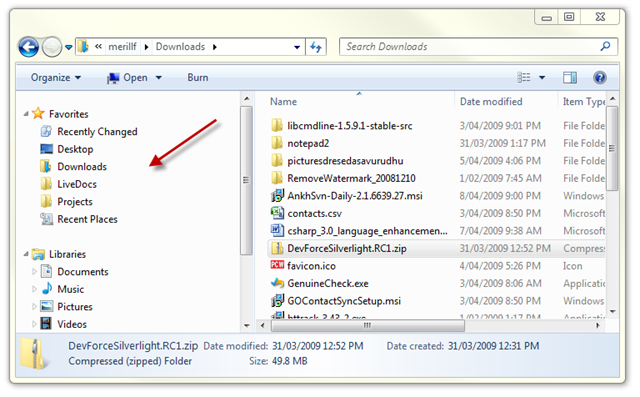
Win7 (or at least the build I have) by default does not auto expand the tree view when you navigate between folders.
The result being you don’t see the usually tree hierarchy on the left pane. Which makes it quite painful if you want to go up a few levels or see the other parent folders.
Luckily there is a new Folder Option called Navigation Pane to switch them back on again. You need to press Alt + T or Organize –> Folder Search Options in Windows Explorer to get to the dialog.
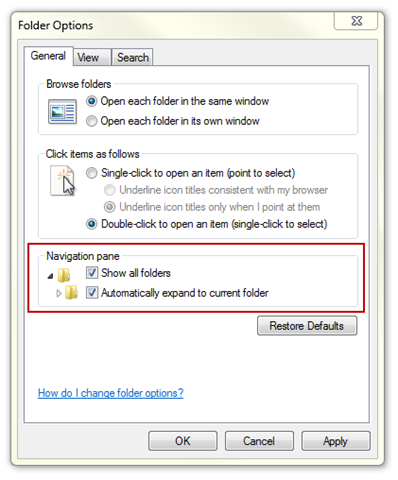
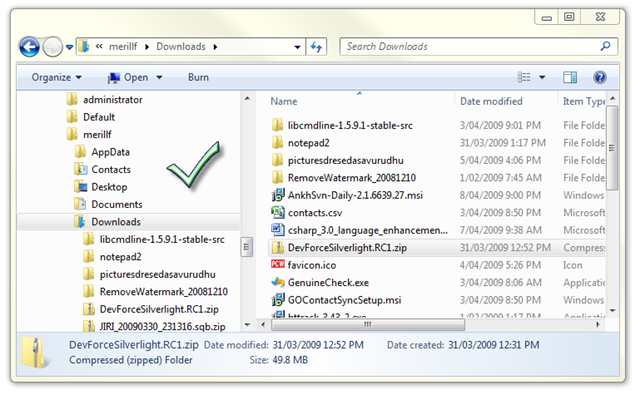
Switch both of them on and viola I get my beloved tree view back.
PS- Most of my UW colleagues use other explorers and didn’t have to feel this pain.

Great. My thanks also. Why MS changes the default is puzzling, to put it VERY euphemistically.
Useful tip, thanks. You also need Organize, Layout, Navigation Pane to see the tree.
I run a dual boot Windows 98 & NT m/c at home on an ancient AMD with 512Mb RAM. Amazing how fast NT starts up & how little memory it uses compared to Windows 7 at work. Being a developer I find all the “idiot friendly” stuff intensely annoying. I suspect M$ lost the plot as regards usability testing years ago. You only have to use a browser like firefox with AdBlock & FlashBlock to realise IE is seriously deficient.
MY HERO! Thank you for this!
I too thank you for resolving yet another quirk that was driving me nuts in my transition to Win7 ~ THANKS!!
Ditto… XP worked fine for me but I got talked into “upgrading” to Win7 and I hate it! Seems to me it’s just Vista re-packaged after they fixed a the worst of it’s “issues”
Likewise I’ve been defending the PC all these years but, after seeing what they’ve done Vista and Win7, I’m thinking maybe I should just buy a Mac and load it up with the MS Office suite.
But for now I’m back to google to see if anyone has figured out how to display that “up one folder” icon and pin the Explorer shortcut to the start menu…. if that’s even possible.
Yay… I got my UP button back!
If you want all those start menu and explorer features that you loved and lost when you “upgraded” to Win7 you can download the “Classic Shell” application for free at this URL >>>> http://classicshell.sourceforge.net/
OMG it’s like putting on a pair of comfy old shoes after you’ve been limping around in new ones that look nice but just don’t fit right.
Thanks… great tip. Stupid explorer!!!
nice tips!
@KS
You are my new hero. Why oh why is it necessary to alter these basic functions. I just helped a co-worker that had already spent an hour on his own trying to figure out how to get his signature turned back on in Outlook.
Oh man this post made my day. Thankyou for sharing to help all of us frustrated newbie win 7 users. God Bless You.
And relax… Thank you so much… Over 12 months I’ve lived without knowing this
It’s always nice to find the perfect solution as the first hit on a google search for what i need. Thank you, worked like a charm.
Thanks
It was an easy answer to my need.
Anyway I think Windows 7 is a top system for now and will slowly replace Win XP to be classic.
Totally awesome, thanks.
[...] Since moving to Windows 7 at work this has been driving me nuts. I move between my IDE and explorer all day and by default Win7 doesn’t show you the folder tree, and doesn’t auto expand. (Why are computer UIs always trying to hide the file and folder structures? Its like hiding the books in a library!) Luckily quick Googling found this article on the issue: Show Folder Tree in Windows 7 Explorer [...]
Cheers buddy, the frustration levels were getting outta control.
Thanks, was frustrated previously.
I set my machine up like this when I first got it. It didn’t change a thing. Any other ideas?
[...] in XP’s “explorer” and you can also make Windows 7 look very much like XP… http://merill.net/2009/04/show-folder-tree-in-windows-7-explorer/ [...]
Thanks a bunch. Probably a great feature for some, really irritating for me.
This is a big help. I call it changing Explorer to adult mode.
Got to add My Thanks Too!
Sick of software companies justifying their existence by shuffling deckchairs on the titanic
Thanks! Just one little check mark stood between me and happiness
Your solution works miracles on local disks but, unfortunately, it doesn’t seem to work on network drives.
When I click on a folder located on \\networkDrive\SharedFolder\Subfolder\SoAndSo the Folder Tree does not follow as it used to do on XP…
I spend a lot of time switching from one folder to the other from one server to the other and that is a major loss to me.
If anyone knows a way it will be most welcomed!
thanks for the info, just noticed this morning on my new machine that it wasn’t there, and with my job, it’s a huge time saver with the folder structure/tree on the laft pane!!!! Thanks again.
Great, thanks a lot! I’m so used to the tree view… and then working with the explorer in win7 drove me absolutely crazy. This makes it again the way I’m used to… great!
Thanks for the tip! This is one of those things that make you wonder: are there really ANY people who actually prefer the default setting? So why is it default then?
Thank you for this. I try to avoid Explorer because of this and other ‘limitations’ and normally use FarManager2 when need to traverse a lot of tree structures. But this helped. At DOS prompt i also make a lot of use of “tree /F” to see what is there.
Thank you – keep up the good work.
@Howard M Thank you Howard.. Actually your comment solved my problem about the navigation pane..
Thanks so much! This was driving me nuts!
Thanks my friend. Your page was #1 on Google for “folder tree in windows 7″ search
Merill, you’re the best mate. I’ve been looking on how to fix this issue and your article is the most detailed I’ve found. Thanks again!
Perfect!!! Thanks for the tip. This has been annoying me for ages!
THANK YOU!
just upgraded to new laptop with Windows 7, did not even realize why I was frustrated in explorer 7 until used old machine to grab some files. Noticed tree was not there on left and had to do additinal clicks. Not anymore. Great!
Perfect! This was what I was looking for!
It strikes me as amazing that this isn’t the default option. It’s like Microsoft want you to be able to know as little as possible about your machine.
More dumbing down I suppose, and motre on the way in windows 8
Thank You!!!!!!!!!!!!!!!!!!!!!!
After struggling with my explorer for the past 8 hours, I decided google for solution, and here you are!!
You mentioned UW, do you mean University of Washington?? I’m an UW alumni myself!
Thanks, it drives me nuts too. Who could possibly want such behavior?
@Sylvia
In each new version of Microsoft, that could be Ms. Windows or Ms. office, it is becoming worst… Microsoft guys bump off very necesssary options and place unneeded options…
For EriPro,
Your Network may be a different version of Windows (mine was) so go to other retro solutions. Otherwise it may be that the Network environment is controlled, so you have no rights to change such settings… Speak to your Network Admin, buy them a coffee, chocolate, whatever it takes dAVo
OMG Thank you so much!!!!! I use windows explorer all the time. This so totally frustrated me.
Much appreciated, thank you for taking the time.
In a sense iPad tablet is unparalleled as it is capable of doing a lot of things moreover to being an ereader which the Amazon Kindle, for example, cannot. iPad tablet is the apparent winner in this case. Having said that, tablet PCs have failed to get mass-market adoption for almost 12 years or so, and a primary reason is that they cost more than a notebook having similar specifications. Apple Mackintosh has made a smart move by providing a model with less RAM and without 3G connection on the cheap. Moreover, most individuals which have tablets usually do not have or even have a need another laptop, which numerous Apple iPad buyers will really want to have along with the Apple iPad tablet, leaving less available budget. Nevertheless, the final thought is that the Apple iPad runs away with this fact.
Thank you so much!